Billing A Customer
• From the POS Tab, access the New Sale Tab
• In the Product Section, Select the Product Ordered by the Customer or search for the Product using the
Search by Product Name bar.
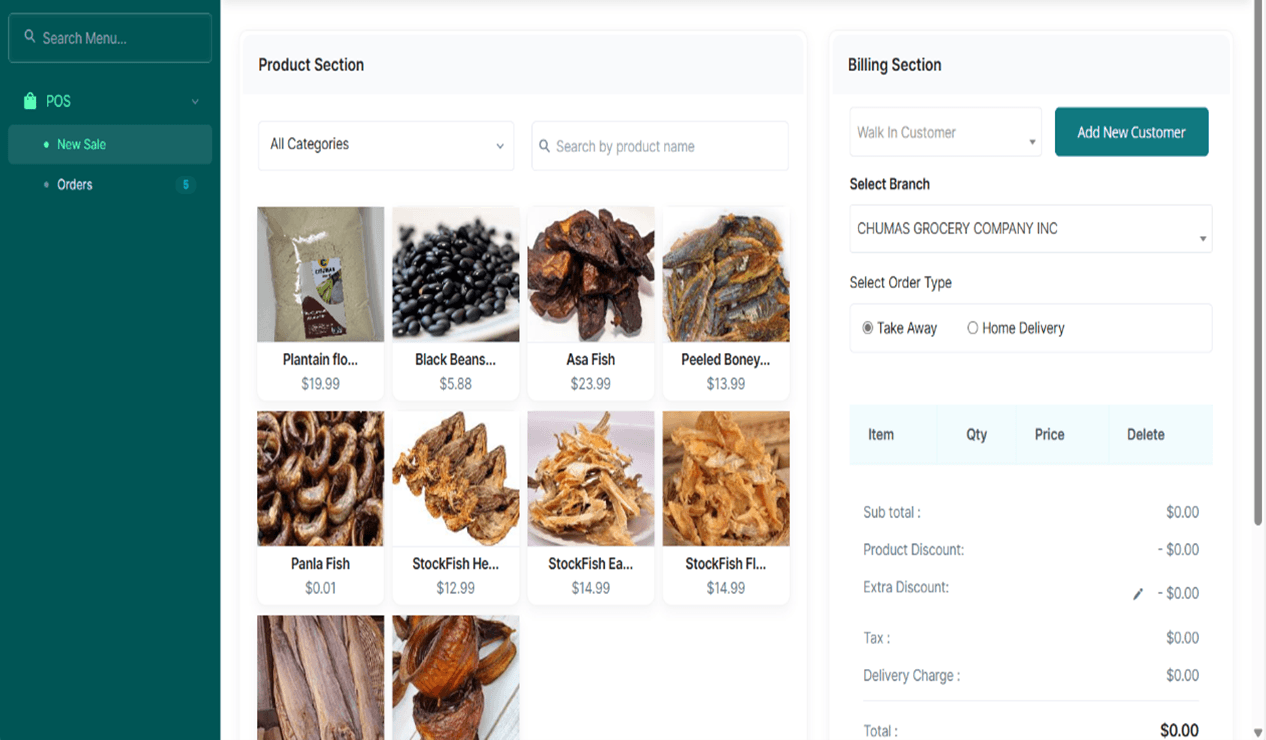
• Tap on the correct product to access the pop-up card
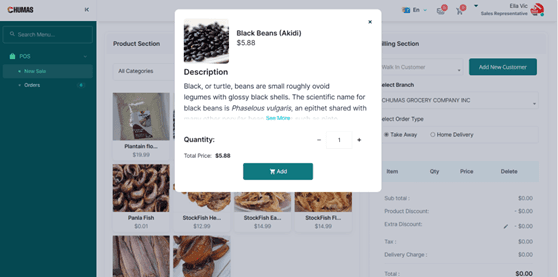
• Select the Quantity ordered by tapping the plus icon on the right.
• Tap the Add Button.
• In the Billing Section, Select the Customer who Ordered.
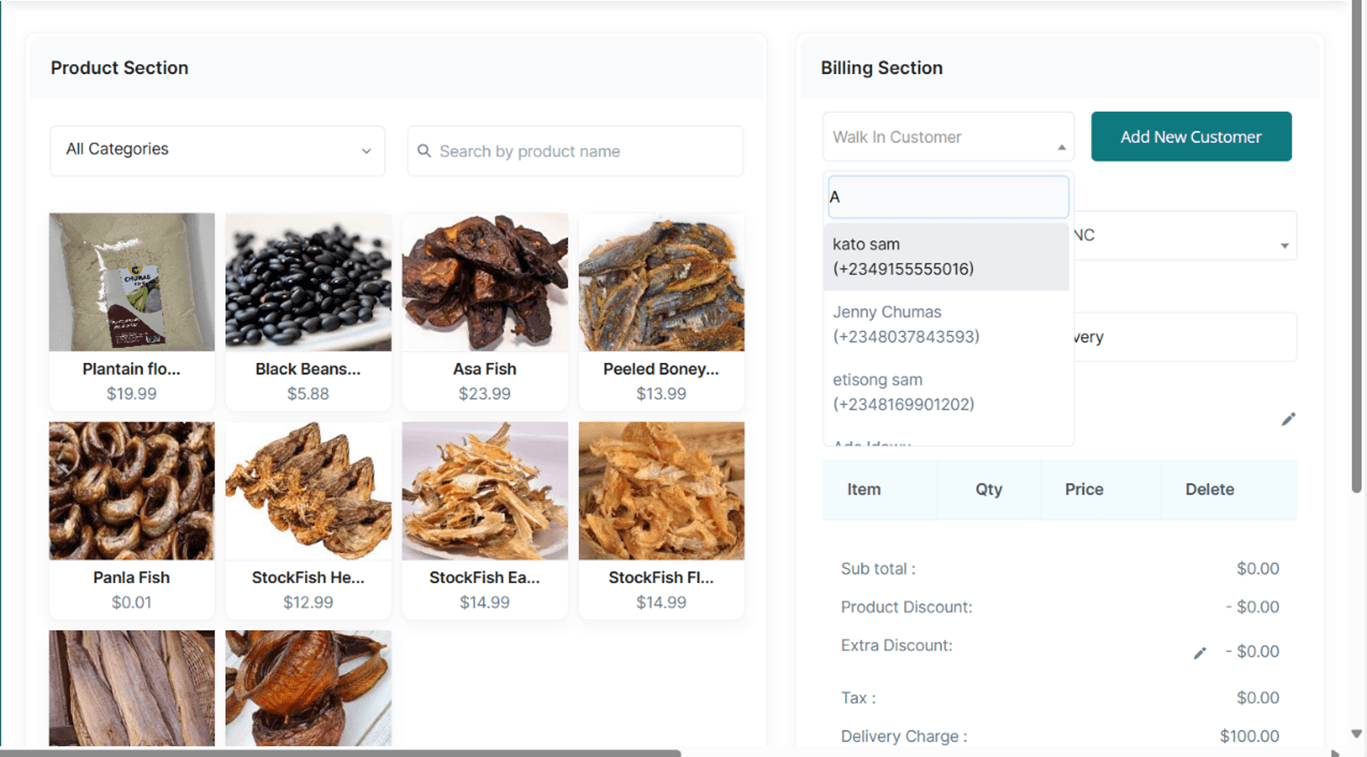
• Select the Company’s Branch which the product was ordered from.
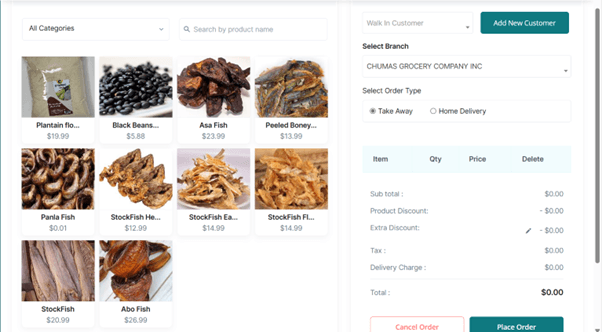
• Select the Order Type as Take Away
• Select the Payment Method as Cash or Card and tap the Place Order Button.
• Tap the Proceed if Thermal Printer is Ready Button to Print out the Customer’s Invoice
• If it is Home Delivery: Click the pencil Icon by Delivery Information to access the Delivery
Information pop-up card.
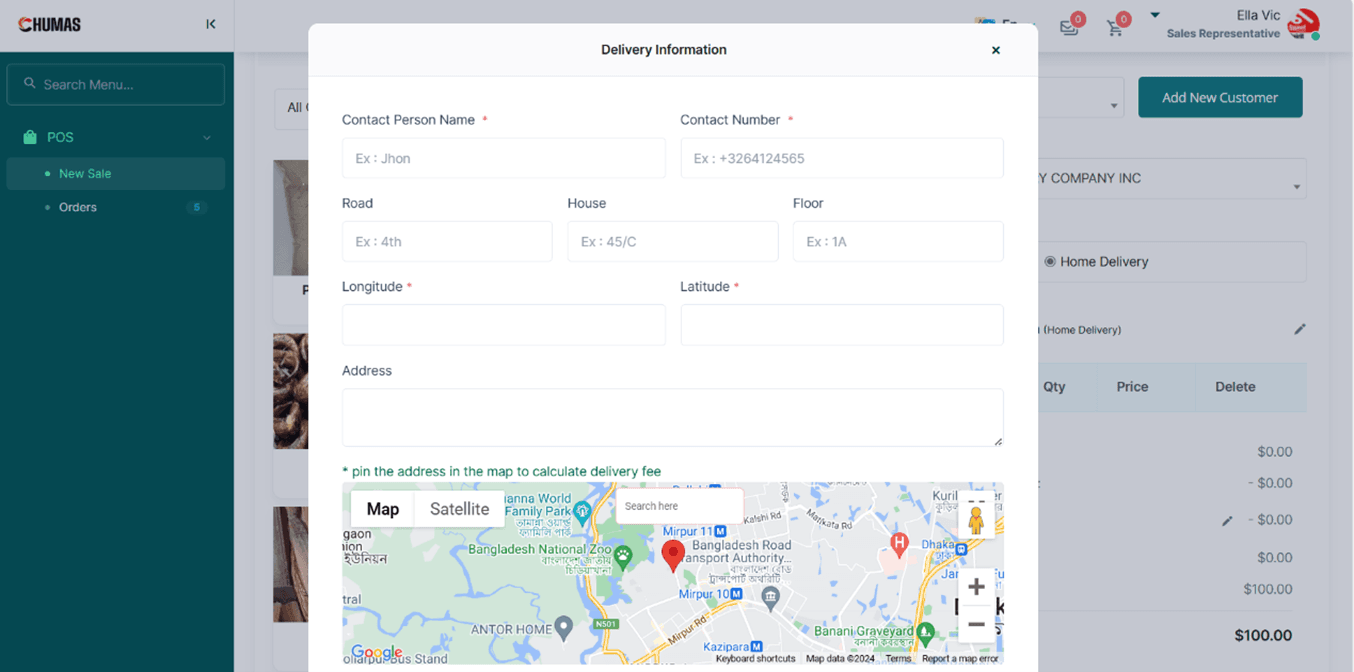
• Input Customer Name, Phone Number, Road Address, House Number, Floor Number.
• Input the full address
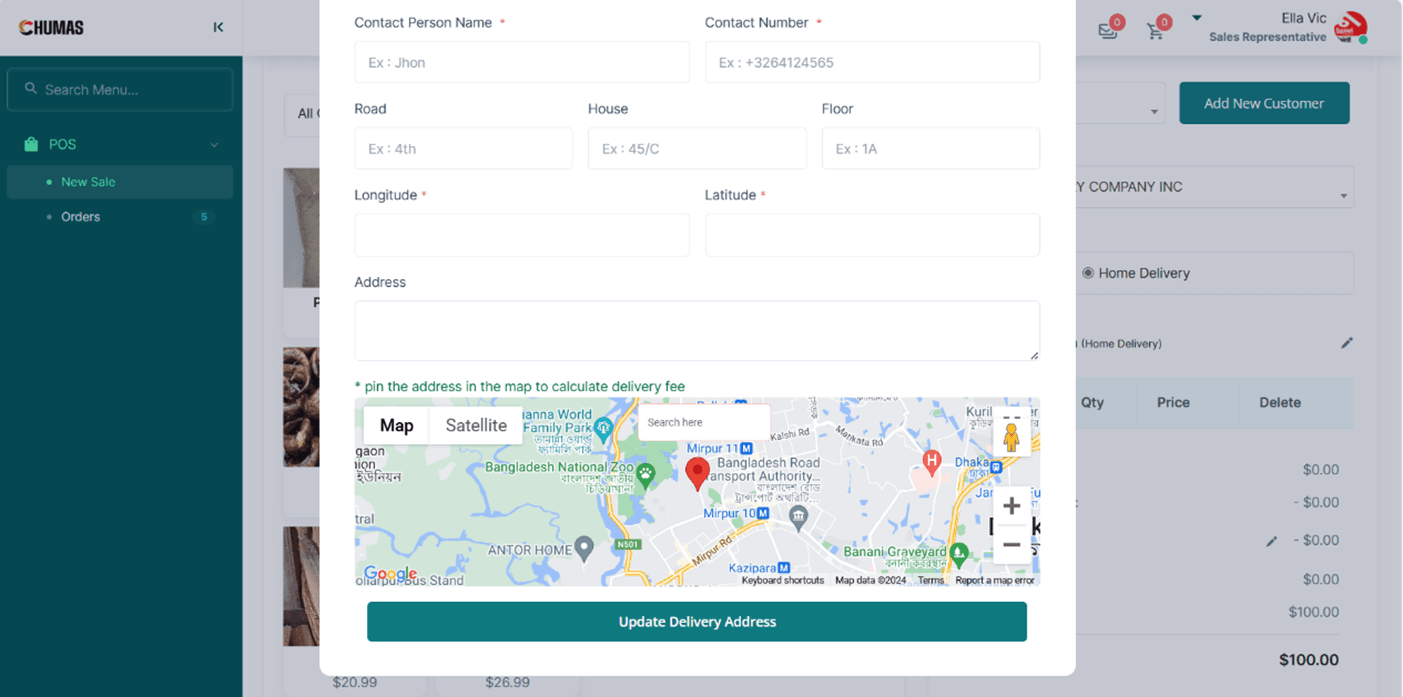
• On the Map, Input Address in the Search bar
• Once the Longitude and latitude spaces have been filled, tap the Update Delivery Address Button.